Claude Code Pricing: Is It Free? Plans and Costs Explained
Skillpedia team · updated 2026-10-16 · 9 min read
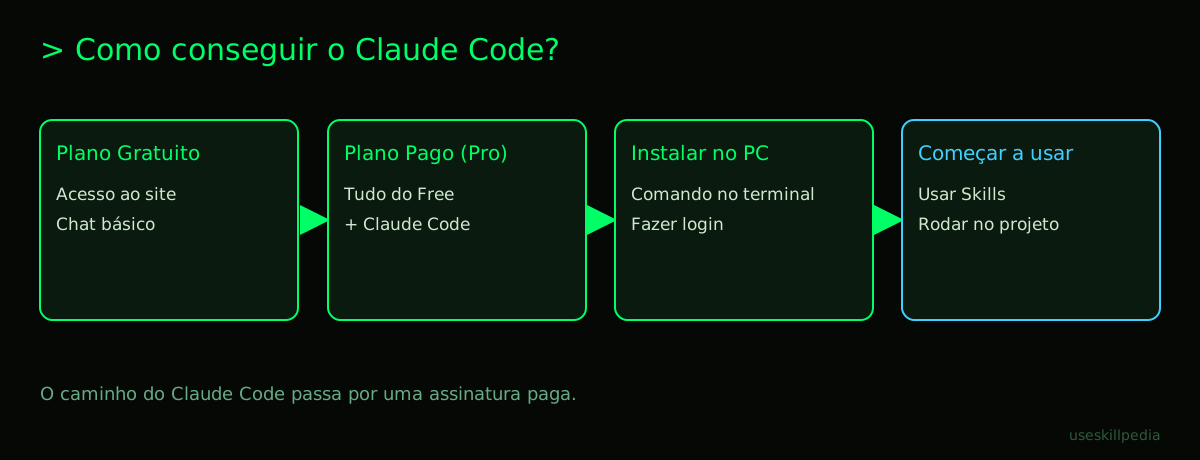
Short answer: Claude Code itself is not a separate paid product. It's a tool you can use if you have a paid Claude plan (Pro, Max, Team, or Enterprise). There is a free version of Claude, but it does not include access to Claude Code.
If you're starting from scratch, this might seem confusing. Don't worry! I'll explain everything as if I were telling a friend who has never heard of it. Let's understand what each thing is, how it works, and of course, how much it costs.
Table of Contents
- What is Claude Code?
- How Does Pricing Really Work?
- Claude Plans: A Visual Guide
- What Are Tokens and How Do They Affect My Usage?
- How to Install and Start Using It?
- We Recommend Trying These 3 Skills First
- Frequently Asked Questions
- Read More
What is Claude Code?
Think of Claude Code as a programming-specialized assistant that lives on your computer. It's different from just opening the Claude website in your browser.
Imagine you have a tech expert friend. The normal website is like texting him on WhatsApp. With Claude Code, it's as if that friend came to sit next to you, looked at your computer screen, worked on your files, and helped you write programs, analyze data, or automate tasks directly.
It works in the terminal, which is a text screen where you give commands to your computer (like in the old days, before icons and mice). But don't be scared! The idea is precisely for you to ask for help in plain English, and Claude Code translates that for the computer.
One of the biggest advantages is that it can use Skills. A Skill is like a specific superpower you give to Claude. For example, a Skill can teach it how to create a beautiful website or test an app. You'll find many ready to use, including some we'll recommend later.
It also supports MCP (Model Context Protocol), which is basically a universal connection standard (like a USB-C port) that allows Claude to access other programs on your computer, like spreadsheets, databases, or design tools.
In short: Claude Code = Powerful programming assistant that runs on your PC, with access to your files, plus extra superpowers (Skills) and connections (MCP).
How Does Pricing Really Work?
Here's the most important part to understand Claude Code pricing. Claude Code does not have its own subscription. It is a benefit that comes along when you pay for a Claude plan.
It's like a club. To get into the pool (use Claude Code), you need to be a club member (have a paid Claude plan). You can't pay just for the pool.
The Claude plans (which you sign up for at claude.com) are:
- Free: Here you can use the claude.ai website to chat, ask questions, and get help with text. But you cannot use Claude Code.
- Pro (Paid): For $20 per month, you unlock everything from the Free plan and get access to Claude Code. You also get more usage capacity (we'll talk about tokens later).
- Max (Paid): More powerful plans, starting at $100 per month, for those who need much more usage. Claude Code is also included.
- Team and Enterprise (Business): Plans for groups and large companies. Claude Code is also included.
Conclusion: If you want Claude Code, you need a Pro, Max, Team, or Enterprise plan. The free version won't work.
Claude Plans: A Visual Guide
Let's put the main information in a table to make it easier to compare.
| Plan | Price (Monthly) | Includes Claude Code? | Usage (per 5-hour "session") | Good For... |
|---|---|---|---|---|
| Free | Free | No | Lower limit (chat only) | Anyone wanting to try Claude for simple text tasks, without programming. |
| Pro | $20 | Yes | More usage than Free | Individuals, students, and professionals who want to use Claude Code for personal projects or work. |
| Max | Starting at $100 | Yes | 5x (Max 5) or 20x (Max 20) the usage of Pro | Advanced users, professional developers, or small teams with very high demand. |
| Team | Contact for quote | Yes | Dedicated limits for teams | Companies that want to manage usage and security for a group of people. |
Important details about paid plans:
- Renewal: Your usage "credit" (the tokens) is not monthly. It renews every 5 hours. It's as if your cup refills every 5 hours. Paid plans also have a maximum weekly limit.
- Shared Usage: The usage limit is a single pool for everything: normal conversations on the website and use of Claude Code. They share the same "cup."
- Skills and Connectors: Skills (in Claude Code) and Connectors (on the Claude.ai site, which are like Skills for the browser) are available on all plans, including Free. So, you can try out some superpowers even without paying, but you won't be able to use Claude Code itself.
What Are Tokens and How Do They Affect My Usage?
"Tokens" is the technical word for the unit of measurement the AI uses to process text. It's what gets "spent" when you use Claude.
Think of tokens as amusement park tickets. Every question you ask, every file you upload, and every response Claude generates costs a certain number of tickets (tokens). When your tickets run out, you need to wait for the renewal (every 5 hours) to keep playing.
How much is 1 million tokens? According to Anthropic (the company that created Claude), 1 million tokens is roughly equivalent to about 555 thousand words. That's a ton of text! It could fill several books. Everything you send and receive counts: your question, the conversation history, the files you upload, and the AI's response.
What about the models? Claude has several "brains" (models) with different prices per token:
- Haiku: The fastest and cheapest. Ideal for simple tasks.
- Sonnet: A great middle ground between price and capability. It's excellent for programming.
- Opus and Fable: The most powerful (and expensive). For complex tasks requiring deep reasoning.
On the Pro plan, you generally use Sonnet. If you want to understand more about this fascinating (and confusing) topic, we have a complete article explaining tokens.
How to Install and Start Using It?
If you've decided on a paid plan and want to install Claude Code, the process is straightforward. You need to open the terminal (that black command screen we talked about) on your computer.
Here are the official commands to install. Choose the one for your system:
- macOS or Linux: Open the Terminal and paste:
curl -fsSL https://claude.ai/install.sh | bash - Windows (PowerShell): Open PowerShell as Administrator and paste:
irm https://claude.ai/install.ps1 | iex
What happens next?
- The command downloads and installs the program.
- To test, you can type
claude --version. - To use it, go to your project folder (using the
cdcommand) and simply typeclaude. - The first time, it will open a browser window for you to log into your Claude account (the same one with the paid plan).
Done! Now Claude Code is running in the terminal, ready to help. If you have problems, the claude doctor command tries to diagnose what's wrong.
A friendly note: If these terminal steps seem scary, don't worry. It's normal at first. The good news is that after installation, using it is much simpler: you just chat with it in English. And if you want an experience with less terminal, you can also explore Skills and Connectors directly on the claude.ai website, even on the Free plan, to get used to the idea of giving more specific instructions to the AI.
If you want a guide with all the installation and first steps details, check out our complete guide on Claude Code.
We Recommend Trying These 3 Skills First
Skills are the best way to see the magic happen. They "teach" Claude how to do something specific. Start with these:
- Frontend Design: Teaches Claude how to create the look of websites (colors, buttons, layout). Perfect if you have an idea and want to see a sketch of how it would look on screen.
- Webapp Testing: Teaches Claude how to test web apps, looking for bugs or things that don't work as they should. It's like having an automatic QA (quality assurance) tester.
- Skill Creator: This one is meta! It teaches Claude itself how to create new Skills. If you think "I wish there was a Skill that does X," use this one to try to build yours.
Frequently Asked Questions
Do I need to be a programmer to use Claude Code? No! The idea is precisely to help both beginners and experts. You ask for help in English ("how do I change the color of this button?"), and it suggests the code or even writes it for you.
Can I use Claude Code completely for free? No. Access to Claude Code requires a paid plan (Pro, Max, etc.). The Free version does not include this tool.
Can I use Skills on the free plan? Yes! Skills and Connectors work on the claude.ai website even on the Free plan. You just won't have Claude Code running in your PC's terminal.
Is installation difficult?
It can be a little intimidating if you've never used a terminal, but the official commands are simple to copy and paste. The community also helps a lot. If it doesn't work, the claude doctor command can indicate the problem.
What is MCP and do I need to use it? MCP is a standard for connecting the AI to other programs (like an Excel spreadsheet or your Google Calendar). It's not mandatory, but it's an extra power for advanced automations. You can learn more in our article What is MCP.
Read More
- Claude Code: what it is, how to download, install, and how much it costs (2026 guide) – Our main guide, with all the details.
- CLAUDE.md: the file that makes Claude Code smarter – Learn how to create a file that customizes how Claude behaves in your project.
- Claude vs ChatGPT vs Gemini: which one to use – A simple comparison between the main AI assistants.
- AI Agent: what it is, how it works, and how to create yours (without coding) – Understand the concept behind Skills and Connectors.
- Search for skills – Explore the official repository to find more cool Skills.
Sources
- Claude Code: installation and requirements (accessed on 10/16/2026)
- Claude Code: overview (accessed on 10/16/2026)
- Claude plans and pricing (accessed on 10/16/2026)
Full guide on this topic: Claude Code: What It Is, How to Download, Install, and Cost (2026 Guide)