Claude Code: What It Is, How to Download, Install, and Cost (2026 Guide)
Skillpedia team · updated 2026-10-16 · 14 min read
Short answer: Claude Code is a programming agent from Anthropic that works directly in your terminal, code editor, or Desktop app. It helps you write, fix, and automate software projects. It's included in all paid Claude plans (Pro, Max, Team, Enterprise) and is not available on the free plan.
Want to have an expert programmer working alongside you, without needing to be an expert yourself? Claude Code might be the answer. If you've ever struggled to fix a website error, automate a spreadsheet, or simply start a project from scratch, this tool was made for you.
It's different from the regular Claude chat. While on the website you chat, here the agent acts: it can create files, run commands, analyze errors, and suggest solutions directly in the environment where you already work. It's like having a development buddy inside your computer, ready to help with tasks from the simplest to the most complex.
In this complete 2026 guide, we'll explain everything in simple terms: what it is, what it does in practice, how much it costs, and how to install it on Windows, Mac, or Linux. Let's go?
Table of Contents
- What is Claude Code?
- What does Claude Code do in practice? (Examples for beginners)
- How much does Claude Code cost? (2026 Plan Table)
- How to download and install Claude Code (Windows, Mac, Linux)
- First use of Claude Code: step by step
- Useful commands and features you need to know
- Claude Code vs. Claude.ai vs. Cursor: which one to use?
- Tips to spend less of your usage limit
- We recommend trying these 3 skills first
- Frequently Asked Questions (FAQ)
- Read also
What is Claude Code?
Imagine you need help with programming. You could open the Claude website, paste your code, and ask for help. Claude Code skips that step: it's Claude itself, but integrated into your development workflow.
It presents itself as a "programming agent." In practice, this means it's a command-line tool (CLI) that you run in the terminal. But it also exists as a Desktop application with a graphical interface and as an extension for popular editors like VS Code and JetBrains.
Its main advantage is context. When you start Claude Code in a project folder, it automatically has access to all the files there. It can read, analyze, modify, and create new files. It can also execute system commands (like running a test server or installing a library) with your permission.
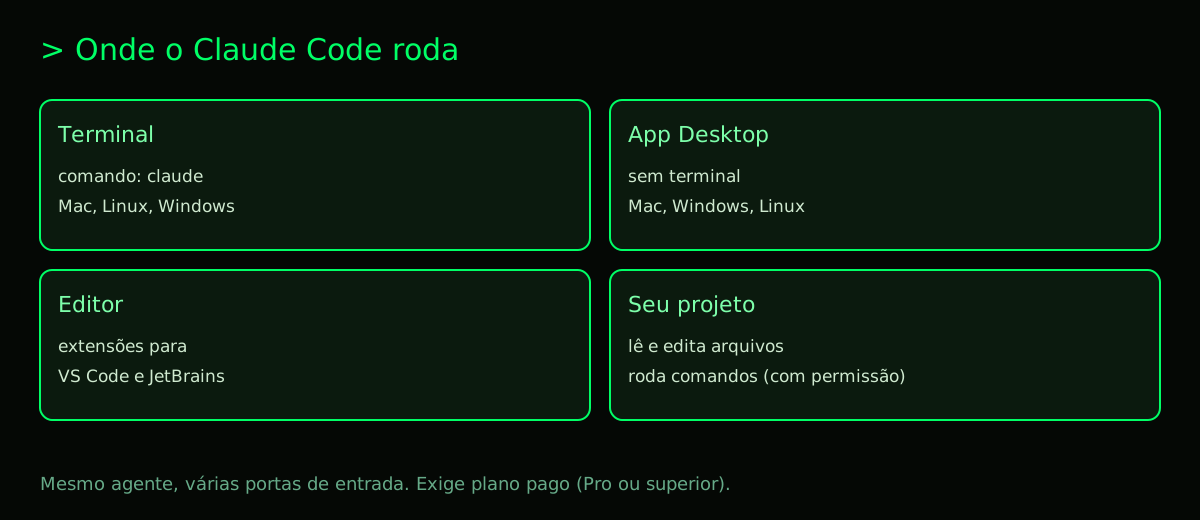
In short, Claude Code takes AI out of the browser and puts it to work alongside you, in your natural development environment. For complete details on installation, check out our How to download and install Claude Code.
What does Claude Code do in practice? (Examples for beginners)
You don't need to be a professional programmer to benefit from Claude Code. Here are some concrete examples of what it can do for you:
- Create a simple website: Say "create a portfolio website for a photographer with a gallery." Claude Code will generate the HTML, CSS, and JavaScript files, structure the folders, and even suggest placeholder images. We have a complete tutorial at Create a website with Claude Code.
- Fix a mysterious error: Paste the error message that appeared in your terminal. The agent will analyze it, explain in simple terms what went wrong, and apply the fix to the correct file.
- Automate a spreadsheet: Need to transform data from one format to another, or create an automatic report? Describe the task. Claude Code can write a Python or JavaScript script that does it for you.
- Document a project: It can read all your code files and generate clear documentation about what each part of the project does.
- Convert code: Need to transform a Python function into PHP, or JavaScript into TypeScript? Just ask.
- Create presentations and edit videos: With the right skills and connectors, it can help Create slides with Claude or even Edit video with Claude.
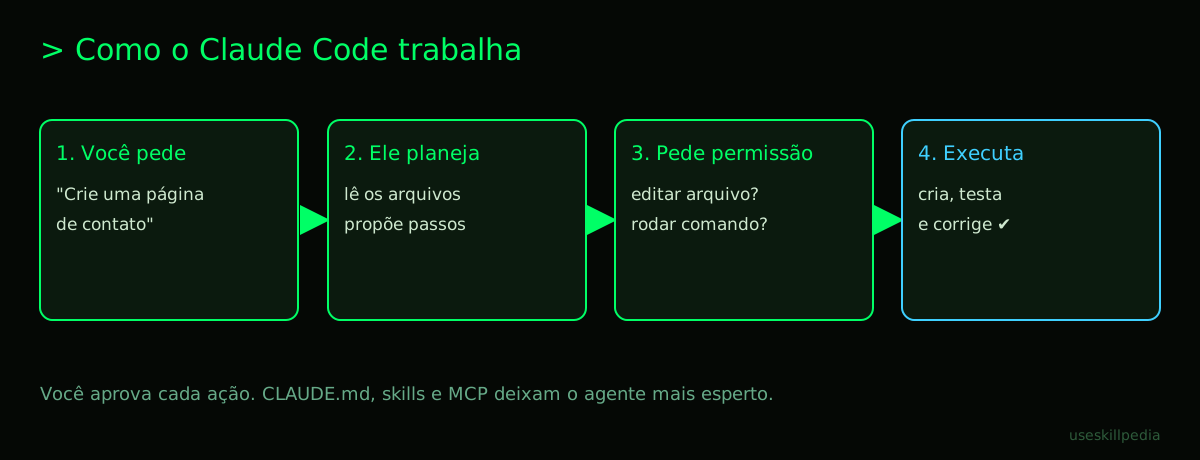
The agent acts iteratively. You give an instruction, it suggests a plan, asks if it can execute, and after you authorize, it goes step by step: creating files, running tests, adjusting the code until the task is complete.
How much does Claude Code cost? (2026 Plan Table)
This is one of the most important questions. Access to Claude Code is linked to your Claude subscription. Here are the official Anthropic plans, as of October 2026 data:
| Plan | Monthly Price | Claude Code Included? | Main Limits (5-hour window) |
|---|---|---|---|
| Free | $0 | NO | Access to basic chat with limited models. No Claude Code. |
| Pro | $20 (monthly) or $17/month (annual, $200 billed once) |
YES | Generous usage limit, shared between chat and Claude Code. Includes a weekly limit. |
| Max | Starting at $100/month | YES | Offers 5x (Max 5x) or 20x (Max 20x) the usage of the Pro plan per 5-hour session. |
| Team & Enterprise | Per user (Enterprise: $20 per user/month + usage billed at API price) | YES | For teams and companies, with admin controls. |
Key Points:
- Free Plan has no access: If you use Claude without paying, the Claude Code functionality will not be available to you. You need to subscribe to at least the Pro plan.
- Shared usage: Your token limit (the "units" of AI processing) is the same for chatting on the website (Claude.ai) and for using Claude Code. If you spend a lot in the terminal, you'll have less for chat, and vice versa.
- Skills and Connectors: Available in all plans, including Free. So, even without a subscription, you can test some integrations on the website.
- Limit renewal: The main limits (for Pro and Max plans) renew every 5 hours. Paid plans also have an additional weekly limit.
For a detailed cost analysis and how tokens work, visit our specific guide: Is Claude Code free? Prices and plans and better understand What are AI tokens (and why they run out so fast).
How to download and install Claude Code (Windows, Mac, Linux)
Installing Claude Code is straightforward. Anthropic offers several methods. Below are the official commands. You just need to choose what fits your system.
Basic prerequisites:
- macOS: Version 13 (Ventura) or higher.
- Windows: Windows 10 (version 1809) or higher.
- Linux: Ubuntu 20.04+, Debian 10+ or similar distributions.
- RAM: At least 4 GB recommended.
For macOS and Linux (including WSL on Windows)
Open the Terminal and run one of these commands:
Via script method (recommended for most):
curl -fsSL https://claude.ai/install.sh | bash
Via Homebrew method (for macOS):
brew install --cask claude-code
Via npm method (Node.js version 22+):
npm install -g @anthropic-ai/claude-code
For Windows
Open PowerShell (no need to be as Administrator) and run:
Via PowerShell method:
irm https://claude.ai/install.ps1 | iex
Via WinGet method:
winget install Anthropic.ClaudeCode
Via CMD method (Command Prompt):
curl -fsSL https://claude.ai/install.cmd -o install.cmd && install.cmd && del install.cmd
Verifying the installation
After installing, open a new terminal (it's important that it's new) and type:
claude --version
If the installation was successful, it will show the installed version (something like 2.1.211 (Claude Code)).
Useful tip: If you encounter problems, the claude doctor command runs a diagnosis of your system and points out possible configuration errors.
The installation is "native" and updates automatically. Remember that you can also use Claude Code via the Desktop app (downloaded from the website) or as an extension in your favorite code editor.
First use of Claude Code: step by step
Let's do your first interaction with the agent. It's very simple.
- Open the terminal: Go to the project folder you want to work on. For example:
cd ~/my-website-project - Start the agent: Type the command:
claude - Authentication: The first time, it will open a window in your default browser asking you to log in to your Anthropic account. It is essential that the account used has a paid plan (Pro or higher) for Claude Code to work.
- Give your first instruction: Return to the terminal. You will see a
>prompt. Now just chat! Type something like:
Or, to start something from scratch:> Explain what's in the files in this folder.> Create a simple HTML page with "Hello, World!" and basic styling. - Authorize actions: The agent will propose a plan. It will always ask for permission before executing commands or writing files. Just choose "yes" or "no" in the menu that appears. You maintain full control.
That's it! From there, it's a conversation. You can refine, ask for changes, correct course. For common tasks, like creating a website, follow our specific guide to create a website with Claude Code.
Useful commands and features you need to know
Claude Code goes beyond basic chat. Get to know some powerful features:
/help: Type this at the prompt to see a list of all available special commands./clear: Clears the history of the current conversation, freeing up context for new tasks.- CLAUDE.md: This is a secret file. If you create a file called
CLAUDE.mdin the root of your project, the agent will read the instructions in it and follow them as a guide for all work in that folder. It can be anything from "always use Python 3.10" to "document all functions." Learn more in our dedicated post on CLAUDE.md. - Skills: These are instruction packages (folders with a SKILL.md file) that you add to the agent. They teach Claude Code how to perform specific tasks, like testing a web application or creating a frontend design. We'll talk about them next.
- MCP (Model Context Protocol): It's an open standard that works like "a USB-C port for AI applications." It allows connecting Claude Code to external data (like your Google Calendar) or tools (like Blender for 3D modeling). Configuration is usually in a
.mcp.jsonfile. Understand better at What is MCP (Model Context Protocol): explained in an easy way. - Subagents: In complex projects, you can instruct the main agent to create and manage "subagents" specialized in different parts of the work, optimizing the process.
Claude Code vs. Claude.ai vs. Cursor: which one to use?
There are several ways to use AI for programming. This table helps choose the right one for your need:
| Characteristic | Claude Code (CLI/Desktop Agent) | Claude.ai (Website/Chat) | Cursor (Editor with AI) |
|---|---|---|---|
| Main Focus | Autonomous agent that acts in the terminal/project. | General chat for conversations and diverse tasks. | Code editor with AI integrated into typing. |
| Best For | Automation, creating projects from scratch, tasks requiring command execution. | Asking questions, brainstorming, analyzing loose files, general use. | Real-time programming, autocomplete, refactoring code within the editor. |
| System Action | Can create/edit files and run commands (with permission). | Only analyzes and suggests. You copy and paste. | Edits files open in the editor, but action in the terminal is more limited. |
| Project Context | Accesses the entire folder where it was started automatically. | Only sees files you manually upload. | Sees the project open in the editor and the open files. |
| Cost (Claude) | Included in Pro, Max, Team, Enterprise plans. | Available in all plans, including Free (with limits). | Separate product, with its own subscription. |
| MCP Integration | Native and robust support for MCP servers. | Supports "Connectors" (equivalent to MCP). | Also supports MCP. |
In summary: Use Claude Code when you want the AI to execute tasks in your project. Use Claude.ai to chat and plan. Use Cursor if you want an AI fully integrated into your typing in the editor. For a broader comparison between assistants, see Claude vs ChatGPT vs Gemini.
Tips to spend less of your usage limit
Since the token limit is shared and renewable, using it wisely is key:
- Be specific: Vague instructions generate attempts, rework, and token spending. Say exactly what you want: "Fix the syntax error on line 15 of the
script.jsfile." - Use
CLAUDE.md: Putting project rules and standards inCLAUDE.mdavoids you having to repeat them in every new conversation, saving context. - Clear history: Use the
/clearcommand when you completely change tasks within the same project. This removes history from memory, freeing up precious tokens. - Control actions: Authorize command execution or file writing only when the plan proposed by the agent makes sense. Avoid letting it "try" many random things.
- Choose the right model: Within Claude Code, you can configure it to use cheaper models for simple tasks (like Claude Haiku 5.5, switched with the
/modelcommand) and reserve the most powerful model (like Claude Opus 5.5) for complex problems. Consult Best AI models in 2026: which one to use for each task for guidance.
We recommend trying these 3 skills first
Skills make Claude Code more powerful. Install them to give superpowers to your agent. Here are three excellent ones to start with, all from Anthropic's official repository:
- frontend-design-anthropics: Teaches the agent to create and refine interface designs (UI) directly in the code, thinking about colors, layout, and user experience. Perfect for anyone creating a website.
- webapp-testing-anthropics: Empowers Claude Code to write and run automated tests for your web application, helping to find bugs before your users do.
- skill-creator-anthropics: The skill that creates other skills! With it, you can describe a task you want to automate and the agent will help you build your own custom skill. It's the concept of AI Agent: what it is, how it works, and how to create yours (without programming) in action.
To explore more, visit our page to search for skills or the complete guide Claude Skill: what it is, how to install, and the best ones to try (2026 guide).
Frequently Asked Questions (FAQ)
Do I need to be a programmer to use Claude Code? No. It's excellent for beginners, as it can teach and guide. You just need to know how to describe what you want to do in clear language.
Does the Free plan of Claude have access to Claude Code? No. Access to Claude Code is an exclusive benefit of the paid plans (Pro, Max, Team, and Enterprise).
Can I use Claude Code offline? No. It needs an internet connection to communicate with Anthropic's powerful AI models in the cloud.
Are my codes and files kept private? It depends on your settings. On individual plans (Free, Pro, and Max), the use of data to train models can be turned off in privacy settings; on Team and Enterprise plans, data is not used for training by default. Read Anthropic's policy before opening sensitive projects.
Can Claude Code access the internet on its own? Yes. It can search the web and open pages when the task requires it, always following the permissions you set. With MCP servers you can also connect other sources, like your Google Drive.
What's the difference between Skill, MCP, and Connector? Skill is a set of instructions for the agent. MCP is the standard protocol for connecting AI to external data/tools. Connector is the name Claude.ai gives to MCP implementations on the website. At their core, they are similar concepts of extensibility.
What happens if I reach my usage limit? Claude Code (and chat on the website) will stop working until your limit is renewed in the next 5-hour window (or weekly, depending on the plan).
Read also
Want to dive even deeper? Check out these other essential articles from our blog:
- How to download and install Claude Code – Detailed installation guide.
- Is Claude Code free? Prices and plans – Complete financial analysis.
- What is MCP (Model Context Protocol): explained in an easy way – Understand the "USB-C port" of AI.
- Claude Skill: what it is, how to install, and the best ones to try (2026 guide) – Master the agent's skills.
- Claude in Chrome and Excel – See how to use Claude in other everyday tools.
- AI Agent: what it is, how it works, and how to create yours (without programming) – Expanding the concept behind Claude Code.
Sources
- Claude Code: installation and requirements (accessed 10/16/2026)
- Claude Code: overview (accessed 10/16/2026)
- Claude Code: MCP (accessed 10/16/2026)
- Claude plans and pricing (accessed 10/16/2026)
- Anthropic API pricing (accessed 10/16/2026)