Create Slides and Presentations with an AI Presentation Maker
Skillpedia team · updated 2026-10-16 · 10 min read
Short answer: You can create slides and presentations with AI using Claude. Just describe what you need in English, and it formats everything, generates images, and suggests text. It's like having an assistant that turns your ideas into ready-to-use slides.
Making slides can be boring. Choosing templates, organizing ideas, finding images... it all takes time. And if you're not a designer, it can be confusing.
The good news is that you can now use artificial intelligence to help. And you don't need to be a tech expert. Claude is an AI that understands English and can do the hard part for you.
In this article, I'll show you how it works, in a super simple way. Ready?
Table of Contents
- How Does Claude Make Slides?
- Where to Start? First Steps
- What Do You Need Installed?
- Tips for Requesting Better Slides
- How to Adjust and Edit the Result?
- Is It Free? How Much Does It Cost?
- We Recommend Trying These 3 Skills First
- Frequently Asked Questions
How Does Claude Make Slides?
Claude is an artificial intelligence program. AI is a system that tries to simulate human intelligence by learning from examples. It's trained to understand and generate text.
To make slides, you chat with it. In plain English.
You say: "Claude, I need a 10-slide presentation about sustainability for my school."
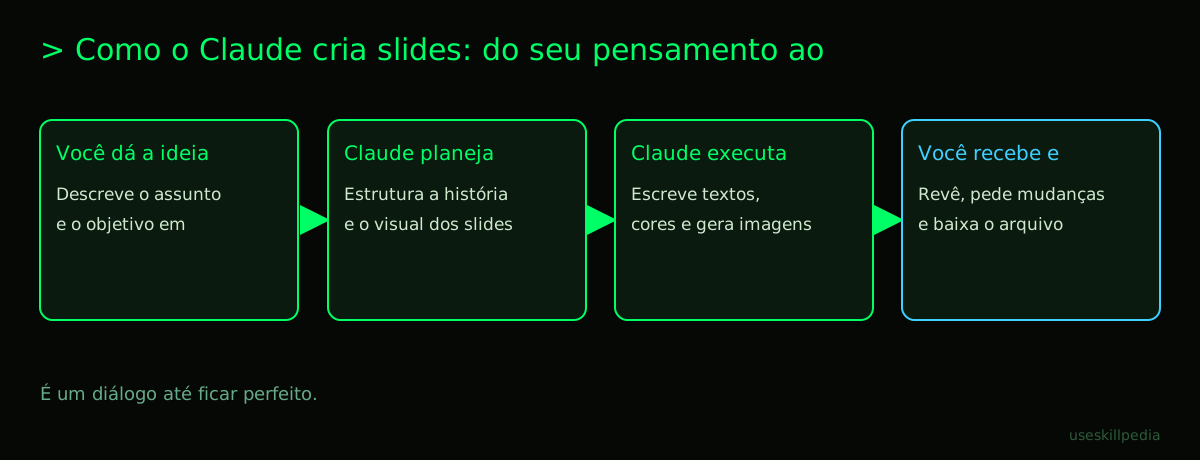
It understands the request. Then, it will:
- Plan the structure (introduction, problems, solutions, conclusion).
- Write the text for each slide, with titles and bullet points.
- Suggest a visual design, colors, and where to place images.
- Often, it can even create the images you ask for.
The final result can be a PowerPoint file (.pptx) ready to open and use. Or a PDF. Or even a link to an online presentation.
The secret is that Claude doesn't just put text in boxes. It thinks about the story you want to tell. It organizes ideas to make sense from start to finish.
Where to Start? First Steps
You don't need to install anything complicated to start testing. See your options, from easiest to most powerful:
- Claude Website (claude.ai): The simplest option. Access it via your browser (Chrome, Edge, Safari), create an account, and you can start chatting. Good for tests and shorter slides. The free plan may have limits.
- Desktop App (Claude Code): This is a program you install on your computer. It offers more features and integration with your files. It's the main tool for serious work. Claude Code: What It Is, How to Download, Install, and Cost (2026 Guide) explains everything about it.
- Extensions in Other Programs: There are extensions that put Claude inside programs like VS Code (used by programmers) or PowerPoint. But for beginners, the two options above are enough.
If you've never used AI before, I recommend starting with the website. It's quick and you'll see what Claude can do. Later, if you like it, you can move to Claude Code.
What Do You Need Installed?
If you choose to use Claude Code (the program installed on your PC), you need to check a few things:
- Operating System: Your computer needs to run macOS 13+, Windows 10 (version 1809+) or a Linux distribution like Ubuntu 20.04+. Most PCs bought in the last few years will work.
- RAM Memory: At least 4 GB. RAM is your computer's working memory, where programs stay while they are open. You can check this in your system settings.
- Internet Connection: Claude Code needs an internet connection to work, because its "intelligence" runs on powerful servers in the cloud. A server is a powerful computer, always on, that provides a service over the internet.
The installation itself is well-guided. You open the terminal (on Mac/Linux) or PowerShell/CMD (on Windows). These are text programs where you type commands for the computer. Think of them as a direct dialog box with the machine.
You copy the installation command from the official website, paste it there, and press Enter. The program does the rest by itself. Then, you open Claude Code and log in with your account.
| Tool | Best for... | Where to download? |
|---|---|---|
| Claude.ai (Website) | Quick testing, simple requests, use on your phone or any computer. | Visit claude.ai in your browser. |
| Claude Code (App) | Serious work, larger projects, integration with your local files, using skills. | Install via code.claude.com/docs. |
| VS Code Extension | For those who are already programmers and want AI directly in their code editor. | VS Code extension marketplace. |
Tips for Requesting Better Slides
Asking "make slides about marketing" can give a generic result. For slides that really seem made for you, be specific. Imagine you're giving instructions to a designer friend.
Example of a BAD request:
"Create slides for a meeting."
Example of a GOOD request:
"I need an 8-slide presentation in English to convince my sales team to adopt a new customer service method. The tone should be motivational, not technical. I want an impactful title slide, a slide with the 3 current problems (use icons), 4 slides showing the advantages of the new method (each with a metaphorical image), a slide with the action plan for next week, and a final inspirational conclusion slide. Use our brand colors: navy blue (#003366) and orange (#FF6600). The audience will see this on a TV in the room, so use large fonts and minimal text."
See the difference? In the second request, you give context, objective, number of slides, tone, colors, and even the medium where it will be displayed. The more details you give, the less guesswork Claude has to do, and the better the result.
Use this information in your request:
- Audience: Who is it for? Bosses, colleagues, clients, students?
- Objective: Persuade, inform, train, celebrate?
- Tone: Formal, casual, technical, inspirational?
- Visual Style: Company colors, preference for real photos or illustrations, minimalist or full of elements?
- Format: Will it be printed? Shown on a big screen? Sent by email?
How to Adjust and Edit the Result?
Claude rarely gets it 100% right on the first try. And that's okay! Creation with AI is a dialogue.
You receive the first slides and can ask for changes:
- "Slide 3 got too text-heavy. Can you summarize it into 3 short bullet points?"
- "The image on slide 5 didn't fit. Can you generate a new one that shows 'team growth'?"
- "Add a simple chart comparing the numbers before and after."
- "Change all fonts to Arial, please."
Each new message you send is a prompt. A prompt is the instruction or question you send to the AI. The clearer your prompt, the better the AI responds.
If you're using Claude Code, you can do something even more powerful: point to your own file. For example, you have a text document with all the raw information. Instead of copying and pasting, you can say: "Claude, read the file quarterly_report.txt that's in my folder and create a presentation summarizing the main points." It will read the content and work from that.
That's the power of integration. For complex tasks involving multiple steps, you can use an What Are AI Agents? A Beginner's Guide to Creating Your Own. An agent is like an automated workflow with AI, which can take data from one place, process it, and generate the slide in another.
Is It Free? How Much Does It Cost?
Claude has a free plan (Free), but with usage limits. These limits are measured in tokens. A token is the basic unit the AI uses to process text; think of them as "pieces of words." 1 million tokens is roughly equivalent to 555 thousand words in English. Everything you send and receive consumes tokens.
To use Claude Code (the more complete application), you need a paid plan. The main plans are:
- Pro (US$20/month): Includes Claude Code and is the most common for individual users.
- Max (starting at US$100/month): For very heavy use, with much higher limits.
The usage limits "renew" every 5 hours. That is, if you use up your tokens, just wait a bit and they come back. Paid plans also have a weekly token limit. Complete details on pricing are at Claude Code é grátis? Preços e planos.
It's worth comparing with other AIs. Claude vs ChatGPT vs Gemini: qual usar helps you choose the best one for your goal. Each has its strengths. For slide creation, Claude stands out for its writing quality and ability to follow complex instructions.
We Recommend Trying These 3 Skills First
In Claude Code, there are skills. A skill is a package of instructions and tools that teaches Claude to do a specific task very well. It's like giving it an expert manual. You can find more at buscar skills.
For slides, start with these:
- pptx-anthropics: This skill teaches Claude to create and edit real PowerPoint files (.pptx) with professional formatting. Instead of just giving text, it generates the file ready to open.
- frontend-design-anthropics: Helps create visual designs and screen prototypes. Great for planning how the slides will look before putting in the final content, thinking about layout and the viewer's experience.
- webapp-testing-anthropics: Serves more for testing web applications, but the logic of "testing" is useful. You can ask Claude to review if the presentation makes sense, if the flow of ideas is clear, as if it were a member of the audience.
Frequently Asked Questions
Do I need to know programming to use Claude Code? No. The main interface is a conversation in English. The installation part involves copying commands, but you don't need to understand what they do. It's like following a recipe.
Can Claude use my PowerPoint templates? Yes, especially with Claude Code. You can send your template (a .pptx file) as a reference and ask it to apply the same style, colors, and fonts to the new presentation it will generate.
Are the images it generates unique? Can I use them commercially? The images generated by Claude's AI are created on the spot. They are not copies from the internet. Regarding usage rights, always check the terms of service on Anthropic's official page to be sure of the rules for your plan.
Are my data and my slides kept private? Anthropic, the creator of Claude, states that data from paid plans is not used to train public models. But, for ultra-secret information, always consult the official privacy policy.
Can I connect Claude to Google Slides or Canva? Not directly, in a native way. But you can use the MCP (Model Context Protocol) standard. What is MCP? The Simple Guide to the Model Context Protocol explains this. Think of MCP as a universal adapter that allows Claude to connect to other services. There are MCP servers for various tools, but it may require configuration.
Read Also
- CLAUDE.md: o arquivo que deixa o Claude Code mais esperto - Learn to create a file that guides Claude in your project.
- How to Edit Video with AI Using Claude Code: A Beginner's Guide - Another creative task that AI can simplify.
- What Are Tokens in AI and Why Do They Run Out So Fast? - Understand the "currency" that powers these tools.
Sources
- Claude Code: installation and requirements (accessed on 10/16/2026)
- Claude Code: overview (accessed on 10/16/2026)
- Claude plans and pricing (accessed on 10/16/2026)
Full guide on this topic: Claude Code: What It Is, How to Download, Install, and Cost (2026 Guide)