Your First Claude Code Tutorial: Download & Install Guide (Windows, Mac, Linux)
Skillpedia team · updated 2026-10-16 · 11 min read
Short answer: To download Claude Code, open your computer's terminal (the command window) and paste the command for your system. Once installed, you use the claude command in any project folder to start working with code.
If you're starting to explore the world of programming, you've probably heard people talk about AI tools that help write code. Claude Code is one of those tools, and the good news is that installing it is easier than it seems! This guide will explain everything step-by-step, as if you were helping a friend who's never done this before. Don't worry about technical terms—each one will be explained with a simple, everyday comparison.
Table of Contents
- What is Claude Code and Why Install It?
- What You Need Before You Start
- Step-by-Step Installation (Windows, Mac, Linux)
- How to Use Claude Code for the First Time
- What are Skills and Connectors (MCP)?
- Common Questions and Installation Problems
- We Recommend Trying These 3 Skills First
- Frequently Asked Questions
- Read More
What is Claude Code and Why Install It?
Imagine you want to learn how to cook. Instead of reading a giant recipe book alone, you have an expert chef by your side. They see what you're doing, suggest the next step, and explain the reason for each action. Claude Code is exactly that, but for programming. It's an AI tool you install on your computer that works directly in the terminal.
The terminal is a text window where you type commands for your computer. It's like the "direct chat" mode with the machine, instead of using menus and icons.
Claude Code understands the context of your project, sees the files you have, and helps you write, explain, debug (that is, fix bugs), and even run code. The big advantage of having it installed locally is that it integrates directly with your work environment, making the assistance much more powerful and personalized than using a common chat in a browser. If you want to understand more about this tool, check out our complete guide: Claude Code: What It Is, How to Download, Install, and Cost (2026 Guide).
What You Need Before You Start
Let's organize our "mise en place" (the preparation) before we get our hands dirty. You'll need just three things:
- An Anthropic Account: Anthropic is the company that created Claude. You need to sign up for free on the claude.ai website. It's like creating an account on any social network.
- A Paid Claude Plan (Pro or higher): The free version (Free) of Claude does not include Claude Code. To use it, you need to subscribe to at least the Pro plan. It's important to know this before trying to install, to avoid frustration. You can check the plan details at Claude Code é grátis? Preços e planos.
- Your Computer Meets the Minimum Requirements: Your PC or Mac needs an updated operating system and a bit of free memory.
- Windows: Version 10 (1809) or higher.
- macOS: Version 13 (Ventura) or higher.
- Linux: Ubuntu 20.04+, Debian 10+, or similar distributions.
- Memory (RAM): At least 4 GB.
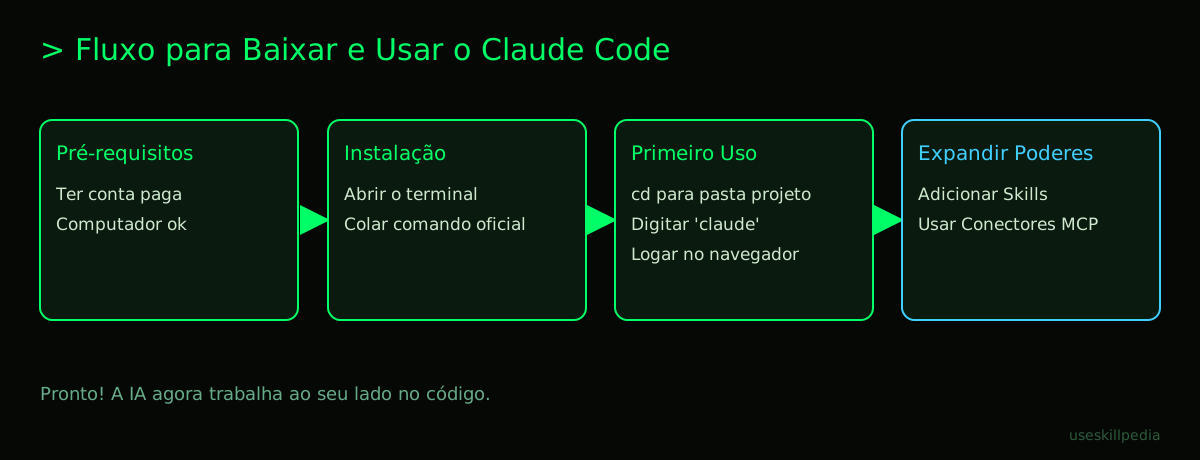
Step-by-Step Installation (Windows, Mac, Linux)
Here is the heart of the guide. Choose the section for your operating system and follow the numbered steps. Just copy and paste!
For Windows Users
On Windows, you can use PowerShell (a more modern terminal) or the Command Prompt (the classic one).
Using PowerShell (recommended):
- Press the Windows key, type "PowerShell", and click "Windows PowerShell" to open it.
- Copy and paste the command below exactly as it is, and press Enter:
This command is an installation script. A script is a list of commands the computer runs automatically, like a recipe the machine reads by itself.irm https://claude.ai/install.ps1 | iex
Using Command Prompt (CMD):
- Press Windows + R, type "cmd", and press Enter.
- Copy and paste the two commands below, one at a time, pressing Enter after each one:
curl -fsSL https://claude.ai/install.cmd -o install.cmd && install.cmd && del install.cmd
Alternative Method (WinGet): If you have the Windows Package Manager (WinGet) installed, you can use this command in PowerShell or Windows Terminal:
winget install Anthropic.ClaudeCode
For macOS Users
On Mac, the most common way is to use the Terminal app, which you can find in the "Utilities" folder.
- Open the Terminal app.
- Copy and paste the command below and press Enter. The system may ask for your password to authorize the installation.
curl -fsSL https://claude.ai/install.sh | bash - Another option, if you use Homebrew (a very popular package manager on Mac), is this command:
brew install --cask claude-code
For Linux Users (and WSL on Windows)
The process on Linux is very similar to Mac's. If you use Windows, you might have WSL (Windows Subsystem for Linux), which is a Linux terminal inside Windows.
- Open your terminal (like GNOME Terminal, Konsole, or the WSL terminal).
- Paste the same command as for Mac and press Enter:
curl -fsSL https://claude.ai/install.sh | bash
Verifying the Installation
After the installation finishes on any system, it's good practice to check if everything went well. In your terminal, type:
claude --version
If the installation was successful, the terminal will show the version of Claude Code you installed. If an error appears, it means something went wrong and you can jump to the Common Questions section.
How to Use Claude Code for the First Time
All set! Claude Code is installed. Now, how do you use it?
Navigate to your project folder: First, you need to "enter" the folder where the code you want to work with is located. In the terminal, use the
cdcommand followed by the folder path. For example:cd /path/to/my/project. A repository is, in this context, simply the main folder of your project, where all the code files are stored.Start Claude Code: Inside your project folder, type the simplest command of all:
claudeThe first time, it will open a window in your internet browser (like Chrome or Firefox) asking you to log in to your Anthropic account. Log in and authorize access.
Start chatting: After logging in, go back to the terminal. Now you can chat with Claude directly there! Type your questions or requests. For example:
- "Explain what the
index.jsfile does." - "Help me create a button on the login screen."
- "Why is this code giving an error?"
- "Explain what the
Claude Code will see all the files in the current folder and use that context to give you much more precise answers. For an even more powerful experience, you can learn to use CLAUDE.md: o arquivo que deixa o Claude Code mais esperto.
What are Skills and Connectors (MCP)?
As you use Claude Code, you'll hear about two really cool things: Skills and Connectors (MCP). Let's simplify them.
Skills: These are like "superpowers" or "shortcuts" you teach Claude Code. Imagine you always ask the AI to organize code in a specific way. Instead of explaining everything again every time, you create a Skill with those instructions. Next time, just activate it! They are little folders with instructions that Claude reads. There are official Skills and you can create your own.
Connectors (MCP): This is where things get even more interesting. MCP stands for Model Context Protocol. The official analogy is that it's like a USB-C port for AI applications. This "port" allows connecting Claude to other programs on your computer or on the internet. For example, you could connect Claude to your Google Calendar so it can see your appointments and suggest times for code meetings. Or connect it to Figma so it can turn a design into code. It's a safe and standardized way to expand what the AI can do. To learn more about this technology, check out What is MCP? The Simple Guide to the Model Context Protocol.
| Feature | Where does it live? | How to add it? | Practical Example |
|---|---|---|---|
| Skill | .claude/skills/ folder inside your project or in the user folder. |
Place the Skill folder in the correct directory. | A Skill that teaches Claude to always document functions in Portuguese. |
| MCP Connector | Configuration in the project's .mcp.json file. |
Using the claude mcp add command in the terminal. |
A connector that gives the AI access to the project's database to query information. |
Common Questions and Installation Problems
"'claude' is not recognized as a command." This usually means the installation path wasn't added correctly to your system's "PATH" (the PATH is like the list of addresses the terminal checks to find programs). Try closing and reopening the terminal. If it persists, use the
claude doctorcommand for a diagnosis."It asked for login, but then it doesn't work." Confirm you are using an account with a paid plan (Pro, Max, Team, or Enterprise). Claude Code does not work with a free (Free) account.
"Can I install it without using the terminal?" Yes! There is a Desktop app version with a graphical interface (menus and windows) and also extensions for code editors like VS Code. For most users, the terminal version (which we teach here) is the most complete. Check the official page for the other options.
"How do I update Claude Code?" The native installation (which we did) updates automatically. You don't need to worry about it.
"Is it safe to run these commands in the terminal?" The commands provided here are the official ones, directly from the Anthropic website (code.claude.com/docs). It's always good to be cautious when running scripts from the internet, but in this case, the source is trustworthy.
We Recommend Trying These 3 Skills First
After installing, how about trying some Skills to see the tool in action? You can find more at buscar skills.
- frontend-design-anthropics: This Skill helps Claude understand and create user interfaces (the part people see and click on a website or app). It's great for those starting with HTML and CSS.
- webapp-testing-anthropics: Teaches Claude to help you test web applications, that is, to check if everything is working as it should before going live. It can suggest tests and even write some simple test code.
- skill-creator-anthropics: The Skill that teaches you how to create other Skills! It's meta, but perfect for when you get the hang of it and want to personalize your code assistant even more.
Frequently Asked Questions
Do I need to pay to use Claude Code? Yes. You need to have at least the Claude Pro plan (US$20 per month) to access Claude Code. It is not included in the free plan.
Does Claude Code use my tokens? Yes. Using Claude Code consumes the tokens from your account in the same way a chat on the website does. Tokens are the "units of text processing" that the AI uses. All paid plans have usage limits that refresh every 5 hours and weekly. Understand better at What Are Tokens in AI and Why Do They Run Out So Fast?.
Can I use Claude Code offline, without internet? No. The heavy AI processing happens on Anthropic's servers (powerful computers maintained by the company). Your computer only sends and receives the data. Therefore, an internet connection is required.
What's the difference between Claude Code, ChatGPT, and Gemini for programming? Each has its strengths. Claude Code integrates deeply with the local terminal. ChatGPT and Gemini also have tools for developers. The choice depends on your workflow and preference. Compare them at Claude vs ChatGPT vs Gemini: qual usar.
What is an "AI agent" and how does Claude Code relate to it? An AI agent is an autonomous assistant that, with a goal, can use tools, search for information, and make decisions to accomplish it. Claude Code can be the foundation for you to create and run agents that automate programming tasks. Learn more at What Are AI Agents? A Beginner's Guide to Creating Your Own.
Read More
- How to Edit Video with AI Using Claude Code: A Beginner's Guide
- Claude Code: What It Is, How to Download, Install, and Cost (2026 Guide)
- What is MCP? The Simple Guide to the Model Context Protocol
- What Are AI Agents? A Beginner's Guide to Creating Your Own
Sources
- Claude Code: installation and requirements (accessed on 10/16/2026)
- Claude Code: overview (accessed on 10/16/2026)
- Claude plans and pricing (accessed on 10/16/2026)
Full guide on this topic: Claude Code: What It Is, How to Download, Install, and Cost (2026 Guide)