How to Create a Claude Skill: A Simple Step-by-Step Guide
Skillpedia team · updated 2026-10-16 · 9 min read
Short answer: Creating a skill is like writing an instruction manual for Claude. You teach it to do a specific task, like organizing photos or summarizing news, using a folder with a simple text file. It's easier than it sounds!
Hey, have you ever used a Claude skill and thought it was cool? How about creating your own? This isn't just for programmers. If you know how to explain a step-by-step process to a friend, you already have the main skill needed.
I'll guide you through a super simple step-by-step process here. No alien language. We'll use everyday analogies for any technical terms that pop up. I promise you'll understand exactly how to create a Claude skill by the end.
Table of Contents
- What is a Skill, Anyway? (And Why Create One?)
- What You Need Before You Start
- Step-by-Step: Creating Your First Skill
- How to Test and Share Your Creation
- Simple Ideas for Your First Skill
- Where to Find Help and Inspiration
What is a Skill, Anyway? (And Why Create One?)
Imagine Claude is a super intelligent but generic assistant. A skill is like a specialized "superpower" or "instruction manual" you give it.
It's a set of rules and examples stored in a folder on your computer. When you activate this skill, Claude reads the manual and learns to do something new and specific for you.
- Why create one?
- Personalization: To teach Claude to do exactly what YOU need, your way.
- Time-saving: Instead of explaining the same task every time, you activate the skill and you're done.
- Fun: It's very rewarding to see the assistant following your instructions.
- Sharing: You can give your skill to friends or use ones other people have made.
What You Need Before You Start
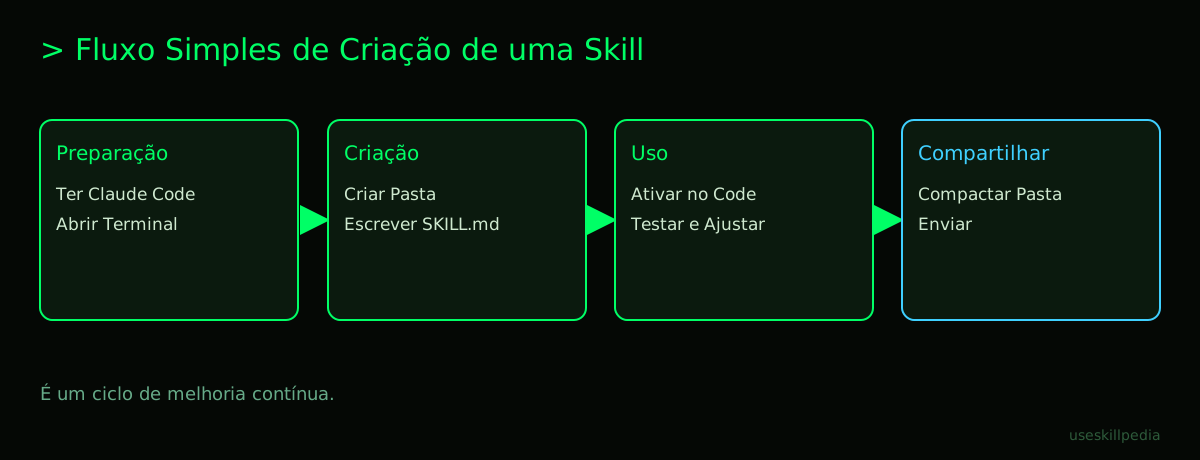
You don't need to be an expert. You just need two things:
Claude Code installed: Claude Code is the "heavy-duty" Claude program that runs on your computer. It's different from the claude.ai website (which is more for chatting). Code is made for more complex tasks and, most importantly, for using and creating skills.
- How to get it? Claude Code is included in all paid Claude plans (Pro, Max, Team). It is not available on the free plan.
- How to install? It's very simple. Go to code.claude.com/docs and follow the instructions for your system (Windows, Mac, or Linux). Basically, you copy a command, paste it into the Terminal (a text window where you give direct orders to the computer, like an old "command mode" in games), and press Enter.
A text editor: Any program that edits plain text, without formatting (not Word). Notepad on Windows or TextEdit (in "Plain Text" mode) on Mac will work. If you want something a bit more friendly, you can download VS Code (it's free).
| What you need | What it's for | Is it required? |
|---|---|---|
| Paid Claude account (Pro, Max, etc.) | To have access to Claude Code, where skills work. | Yes |
| Claude Code installed | The program on your PC that understands and runs skills. | Yes |
| Simple text editor | To write the skill instructions. | Yes (Notepad works) |
| Know basic Terminal commands | To activate and manage skills. | Yes, the basics (copy/paste) |
| Know how to program | To create skills. | No! You just need to know how to write. |
Step-by-Step: Creating Your First Skill
Let's create a skill called "Idea Organizer." It will help Claude take a bunch of scattered thoughts and turn them into an organized list.
Step 1: Find the skills folder Open the Terminal (on Mac/Linux) or PowerShell (on Windows). Type the command below and press Enter. This will take you to the folder where your user's skills are stored.
cd ~/.claude/skills/
If the .claude or skills folder doesn't exist, that's okay. We'll create it.
Step 2: Create your skill's folder Still in the Terminal, type:
mkdir idea-organizer
cd idea-organizer
The mkdir command creates a new folder with the name you chose. The cd command enters it.
Step 3: Create the main skill file
Inside the folder, you need to create a file called SKILL.md. The .md means "Markdown," which is a type of text that allows simple titles and bold formatting.
In the Terminal, type:
touch SKILL.md
Now, open this SKILL.md file with your text editor (Notepad, for example).
Step 4: Write the skill's "manual"
Paste the content below into your SKILL.md file. I'll explain each part.
# Idea Organizer

<h2 id="description">Description</h2>

Skill to transform a messy block of text (ideas, meeting notes, brainstorm) into a categorized list with main topics.

<h2 id="system-instructions">System Instructions</h2>

You are an expert in organization and clarity of thought. Your task is:
1.  Read the text provided by the user.
2.  Identify the main themes or subjects present.
3.  Group loose sentences and ideas under each theme.
4.  Present the result in a clean list, with themes as titles (###) and ideas as bullet points (-).
5.  At the end, summarize in 1 or 2 sentences what the core idea of the presented thoughts is.

Keep the user's original language. Do not invent new ideas, just organize the existing ones.

<h2 id="examples">Examples</h2>

User input:
"I need to plan the trip. Check flights. Hotel near downtown. What to do there? Museums. Local food. Bring an umbrella? Cash. Check vaccines."

Skill response:
<h3 id="logistics">Logistics</h3>

- Check flights
- Hotel near downtown
- Check vaccines

<h3 id="activities-at-destination">Activities at Destination</h3>

- Museums
- Local food

<h3 id="personal-preparations">Personal Preparations</h3>

- Bring an umbrella?
- Cash

**Core idea:** Planning a tourist trip, focusing on accommodation, cultural activities, and practical preparations.
What did you do? You created a manual (SKILL.md) with: the name, a short description, detailed instructions on how Claude should behave, and a practical example for it to learn from. That's it!
Step 5: Activate the skill in Claude Code
Go back to the Terminal. Navigate to your project folder (any folder works) and simply type claude to open Claude Code. When it starts, it will automatically detect the skill in the user's folder.
To use it, just chat normally. Try pasting a messy block of text and asking: "Organize these ideas for me." Claude will use the instructions from your skill!
How to Test and Share Your Creation
- Testing: Do lots of tests! Use different texts. See if the result comes out as you want. If not, edit the
SKILL.mdfile and adjust the System Instructions or add more Examples. It's a cycle of trial and error. - Sharing: Since a skill is just a folder with text files, to share it you just need to compress the folder (
idea-organizer.zip) and send it to a friend. They need to paste the folder into~/.claude/skills/on their computer. - Repository: A repository is like an "online project library," where people put codes and skills for others to use. The official Anthropic place for skills is GitHub. You can publish your skill there for the whole world to see.
Simple Ideas for Your First Skill
Need inspiration? Start with something you actually need:
- Title Reviewer: Skill that analyzes email or video titles and suggests more catchy versions.
- Routine Creator: You describe your day (wake up, work, exercise) and the skill builds an hourly schedule.
- Simplifier Translator: Takes a complex text (from law or a manual) and rewrites it with easy words, as if explaining to a child.
- Shopping List Formatter: Transcribes a voice message ("milk, bread, don't forget coffee, and eggs") into a categorized list (Dairy, Bakery, Produce).
We Recommend Trying These 3 Skills First
Before creating, it's good to see how ready-made skills work. Install these for a reference:
- Skill: skill-creator-anthropics: This one is meta. It's a skill that helps you... create other skills! It asks questions about what you want and generates a draft of the
SKILL.mdfor you. Perfect for getting started. - Skill: frontend-design-anthropics: Teaches Claude to think like a website designer. With it, you can describe a page ("I want a recipe site with a light background") and Claude will suggest a visual structure, colors, and organization. Ideal if you work with the web.
- Skill: pdf-anthropics: Focuses on teaching Claude to better handle PDF files. Like extracting tables, summarizing long reports, or answering questions about the document's content. Very useful for study or work.
Frequently Asked Questions
Do I need to pay to create a skill? Yes, you need a paid Claude plan (Pro or higher) to have access to Claude Code, which is the program where you create and use skills locally.
Is a skill the same thing as a Connector (MCP)? No, they are different concepts, but they complement each other. A skill is an instruction manual for Claude to behave a certain way. A Connector (or MCP) is like a "plug" that connects Claude to other programs or data (like your Google Calendar or spreadsheets). To understand better, read this post: Skills vs MCP: difference and when to use.
Can I use skills I create on the claude.ai website (the normal chat)? No. Skills in the format we showed here (folder with SKILL.md) only work in Claude Code (the desktop app). On the claude.ai website, the similar concept is called "Connectors."
Will my skill work forever, even if Claude updates? Generally, yes, because skills use an open text standard. But if Anthropic changes how Claude Code reads skills, a small adjustment might be needed. It's always good to check the official page for news.
Where can I find more ready-made skills for inspiration?
In the official Anthropic repository on GitHub: github.com/anthropics/skills. There you'll see dozens of real-world examples. You can also search for skills in our directory.
Read Also
- Understand the concept behind skills: Claude Skill: what it is, how to install, and the best ones to try (2026 guide)
- Dive deeper into the main tool: Claude Code: what it is, how to download, install, and how much it costs (2026 guide)
- See skills for a specific area: Best skills for Claude Code in 2026
- Learn about the "competition" for skills: What is MCP (Model Context Protocol): explained in an easy way
- Practical tutorial for installing skills from other places: How to install skills from GitHub on Claude Code, Cursor, and Codex
Sources
- Official Anthropic skills repository (accessed 10/16/2026)
- Open Agent Skills standard (accessed 10/16/2026)
- Claude Code: skills (accessed 10/16/2026)
- Claude plans and pricing (accessed 10/16/2026)
Full guide on this topic: Claude Skills: What They Are, How to Install, and Best Ones to Try