How to Install Claude Skills from GitHub for Beginners
Skillpedia team · updated 2026-10-16 · 11 min read
Short answer: Skills are like "superpowers" you add to your AI assistant. To install a skill from GitHub, you basically copy its folder to a specific place on your computer. It's easy and works across several tools.
Have you ever chatted with an AI and thought: "Wow, it would be great if it could do that specific thing for me"? That's exactly what skills are for.
Think of Claude (or other AIs like ChatGPT) as a super smart assistant, but one that leaves the "factory" knowing a little bit of everything. Skills are like specialized training courses you give it. With a skill, you teach the assistant to do a very specific task, your way, using your favorite tools.
In this article, we'll talk specifically about how to take these skills that other people have already created and shared on GitHub (a kind of "social network for code") and install them for your assistant, whether in Claude Code, Cursor, or similar tools. Everything explained from scratch!
Table of Contents
- What is a Skill and Why Do You Need One?
- Where to Find Good Skills to Start With
- Step-by-Step: Installing a Skill in Claude Code
- How to Use Skills in Other Tools (Cursor, Codex, and Similar)
- Tips for Managing Your Skills Without Headaches
- We Recommend Trying These 3 Skills First
- Frequently Asked Questions
What is a Skill and Why Do You Need One?
Let's start with the most important part: understanding what this is.
A skill is a set of instructions and, sometimes, small programs, that you add to your AI assistant so it learns to do something new and specific.
Everyday Analogy: Imagine you hired a new personal assistant. They're great: they organize your schedule, answer emails, do research. But you're a designer and need them to also know how to use Figma (a design tool). For that, you give them an instruction manual on how you work in Figma, what your favorite shortcuts are, and how you like files to be organized. That manual is the skill. It doesn't turn your assistant into an expert from scratch, but gives them the perfect guide to help you your way.
- Terminal: It's a window on your computer where you type text commands to talk directly to the machine's "brain" (the operating system), instead of using mouse clicks. It's like the direct communication mode with the computer.
- API: It's a set of rules that allows two different programs to talk to each other. Think of it like a waiter in a restaurant: you (one program) place an order with the waiter (the API), and they take your order to the kitchen (another program) and bring the food back to you.
- Token: The basic unit of "word" that an AI can understand. It's not exactly one of our words, but a piece of text. For the current Claude AI, 1 million tokens equals about 555 thousand words in English. Everything you send and receive from the AI is counted in tokens.
- Server: A computer that is always on and connected to the internet, ready to receive requests and send responses. When you use an app on your phone, it's "talking" to a server somewhere in the world.
- Repository (GitHub): An online location, like a "project folder" in the cloud, where programmers store, organize, and share their program codes. It's the main place where skills are published.
Why install a skill? Simple: to customize and supercharge your AI. Instead of spending time explaining every time how you want a task done, the skill already has everything pre-configured. Want the AI to write blog posts in your style? There's a skill for that. Want it to help format spreadsheets in a specific way? There's one for that too. It's you shaping the tool for your work.
Where to Find Good Skills to Start With
Now that you know what it is, you need to know where to find these skills. The main place is GitHub. Anthropic (the company that created Claude) itself maintains an official repository with several example and partner skills.
How to navigate GitHub for a non-technical person:
- Go to the site:
github.com/anthropics/skills. - You'll see a list of folders. Each folder is usually a different skill.
- Inside each folder, look for a file called
SKILL.md. That's where the skill's "cover" is, with the name, description of what it does, and instructions for the AI. - Don't be scared by the other code files. At first, you only need to worry about copying the entire folder.
Golden Tip: Start with skills that solve a real problem you have today. Need to analyze PDFs? Search for "pdf". Having trouble with interface design? Look for "frontend". It's better to master one useful skill than to install ten you'll never use.
You can also search for skills in online directories that catalog these tools in a more organized way.
Step-by-Step: Installing a Skill in Claude Code
Let's get to the practical step-by-step! Here, we'll teach you how to install in Claude Code, which is Anthropic's tool that you install on your computer for coding with Claude's help. To use it, you need a paid Claude plan (Pro, Max, Team, or Enterprise).
| What You Need | Where to Get It | Is It Required? |
|---|---|---|
| Paid Claude account | claude.com/pricing | Yes, for Claude Code. |
| Claude Code installed | Follow the guide at Claude Code: what it is, how to download, install, and how much it costs (2026 guide) | Yes. |
| A skill from GitHub | For example, from the official repository. | Yes, that's what we'll install. |
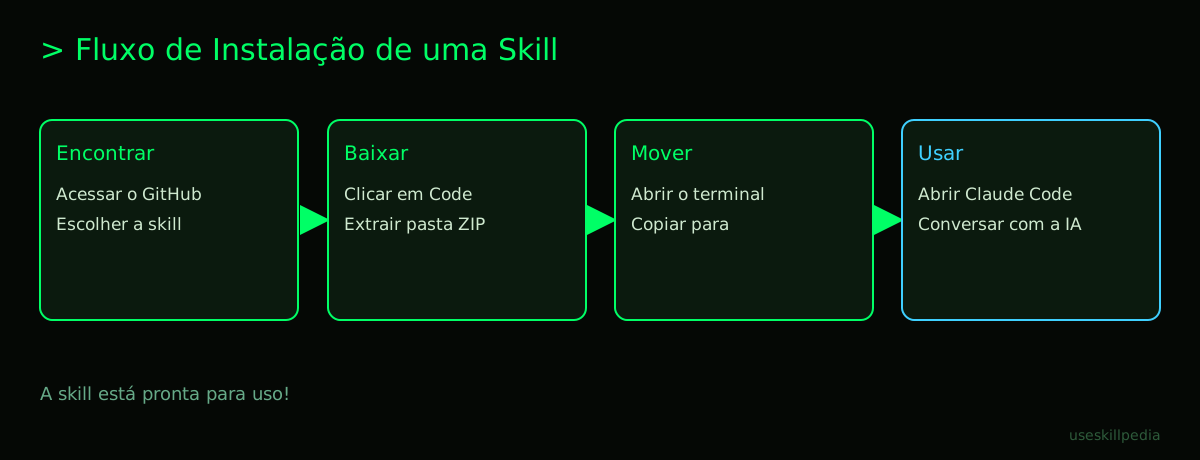
Step 1: Find the skill you want. Let's say you chose a skill called "pdf-analyzer". On GitHub, this will be a folder with that name.
Step 2: Download the skill. On GitHub, look for a green button called "Code" and then "Download ZIP". This will download a compressed file with all the skills from the repository. Extract (unzip) this file on your computer. Inside the extracted folder, find the specific folder for the skill you chose.
Step 3: Put the skill in the right place. Claude Code looks for skills in two places:
- Your project's folder:
your-project/.claude/skills/(only works in that project). - Your user folder:
~/.claude/skills/(works in all your projects).
For a beginner, the user folder is easiest. You need to open the terminal and use a command to move the skill folder.
On Mac or Linux:
- Open the Terminal.
- Type the command below (replacing
YOUR-USERNAMEwith your computer's username andPATH/TO/SKILLwith the location where the skill folder is):cp -r PATH/TO/SKILL/pdf-analyzer /Users/YOUR-USERNAME/.claude/skills/
On Windows (PowerShell):
- Open PowerShell.
- Type a similar command, adapting the path:
Copy-Item -Path "PATH\TO\SKILL\pdf-analyzer" -Destination "$HOME\.claude\skills\" -Recurse
Step 4: Done! Now just use it.
Open Claude Code in the terminal, inside your project's folder, by typing just claude. When you start chatting with the AI, it will already have knowledge of the new skill you installed and can use it.
For a more complete guide on the ecosystem, check out the post Claude Skill: what it is, how to install, and the best ones to try (2026 guide).
How to Use Skills in Other Tools (Cursor, Codex, and Similar)
The concept of skills isn't exclusive to Claude. Other AI programming tools, like Cursor and Codex (a model from OpenAI), also have similar systems. The idea is always the same: give specific contextual instructions to the AI.
The main difference lies in the technical standard they use. While Claude Code uses the "Agent Skills" standard, other tools might use MCP (Model Context Protocol).
- MCP (Model Context Protocol): It's an open standard, like a universal USB-C port, that allows connecting AI applications (like Claude and ChatGPT) to any external tool, like your Excel spreadsheet, your database, or design software. It's more powerful and flexible than a static skill.
In Cursor, for example, you can configure advanced "contexts" that work in a similar way. Instead of copying a folder, you usually set up an instruction file (like a cursor.md) at the root of your project. This file tells the Cursor AI how to behave in that specific project.
The tip is: always consult the official documentation for the tool you're using. The principle (feeding the AI an instruction manual) is universal, but the way to do it may change. To understand the difference between the concepts, read Skills vs MCP: difference and when to use.
Tips for Managing Your Skills Without Headaches
Installing is easy. Keeping things organized is the secret to not getting lost.
- Start with a few: Install only 1 or 2 skills to solve immediate problems. Too many active skills at once can confuse the AI.
- Use clear names: If you create or modify a skill, give the folder a name that reminds you exactly what it does (e.g.,
format-excel-data). - Keep a backup folder: Create a folder on your computer called "Skills-Backup" and keep the versions of skills that work well for you there. That way, if you test a new version and it causes problems, you can go back to the previous one.
- Clean up what you don't use: From time to time, take a look at the
~/.claude/skills/folder and delete the folders for skills you no longer use. This keeps everything faster and more organized. - Use the project folder wisely: Skills in your project's
.claude/skills/folder are great for very specific settings for that task. For example, a coding style that only your company uses.
Remember: the goal is to make your life easier. If managing skills is getting complicated, it's a sign you can simplify.
We Recommend Trying These 3 Skills First
To help you start seeing the magic happen, here are three practical suggestions. Remember that the names and links may be examples:
- skill-creator-anthropics: This skill teaches Claude itself to help you create other skills. It's like a guided "do-it-yourself" kit. Perfect for when you get the hang of it and want to customize something unique.
- frontend-design-anthropics: If you need to create web pages that don't look like "ready-made templates," this skill gives the AI more modern and unique design instructions. Learn more at Frontend design skill: sites that don't look like templates.
- pdf-anthropics: Teaches the AI to extract text, summarize content, and answer questions about PDF documents you send. Solves a very common everyday problem.
Frequently Asked Questions
Do I need to know how to program to install a skill? No, to install a ready-made skill, you basically just need to know how to copy and paste folders. To create a skill from scratch, it helps to understand a bit of structured text, but you don't need to be a programmer. There's a guide at How to create a skill for Claude (step-by-step).
Do skills work on Claude's free (Free) plan? Yes! The skill and Connectors functionality exists in all Claude plans, including the free one. The only limitation is that Claude Code (where we showed the installation) is not available on the Free plan, only on the paid ones.
Can I use the same skill in Claude Code and on the Claude.ai website? Not directly. Claude Code (the desktop application) and the Claude.ai website are different environments. The website uses a system called Connectors, which is based on MCP. The idea is similar, but the way to install is different. Check the official page for how to add Connectors.
Can many skills make the AI slower? Generally, no. Claude's skill system is designed to be "lightweight." The detailed skill instructions are only loaded into the AI's memory when it's actually going to use that skill. Only the name and a brief description are always available.
Where can I find a list of the best skills to try? Besides Anthropic's official repository on GitHub, you can check curated lists in posts like Best skills for Claude Code in 2026. This gives you an idea of what the community is using most.
Read Also
- What is MCP (Model Context Protocol): explained in an easy way
- AI Agent: what it is, how it works, and how to create yours (without coding)
- Skills vs MCP: difference and when to use
- Claude Skill: what it is, how to install, and the best ones to try (2026 guide)
Sources
- Anthropic's official skills repository (accessed on 10/16/2026)
- Open Agent Skills standard (accessed on 10/16/2026)
- Claude Code: skills (accessed on 10/16/2026)
- Claude plans and pricing (accessed on 10/16/2026)
Full guide on this topic: Claude Skills: What They Are, How to Install, and Best Ones to Try