What is a Claude Code Plugin? A Beginner's Guide
Skillpedia team · updated 2026-10-16 · 11 min read
Short answer: A plugin in Claude Code is a ready-made package that makes your coding assistant smarter. It's like downloading a new app for your phone that brings extra, specific features. You install it once, and the new capability is ready to help with your tasks.
Imagine you have an amazing coding assistant, Claude Code. It's already great on its own. But sometimes, for very specific tasks, wouldn't it be nice if it had special tools? That's where plugins come in.
Think of it this way: you're assembling furniture. Your hands (Claude Code) are essential. But a plugin would be like a special screwdriver that only works for one very specific type of screw. This "special tool" doesn't come in the basic box, but you can buy it separately and keep it in your toolbox. When you need to assemble that furniture, the right tool is already there in your hand.
In this article, we'll explain exactly what this means for you as a beginner and show how easy it is to install and start using claude code plugins.
Table of Contents
- A Plugin is Like an App for Claude Code
- What's Inside a Plugin?
- How to Find and Install Your First Plugin (Step-by-Step)
- Plugins vs. Individual Skills: What's the Difference?
- Safety Tips and Smart Usage
- We Recommend Trying These 3 Skills First
- Frequently Asked Questions
A Plugin is Like an App for Claude Code
To understand a plugin, let's remember what Claude Code is. It's a program you install on your computer that uses artificial intelligence to help write, analyze, and discuss code. It's a very powerful assistant.
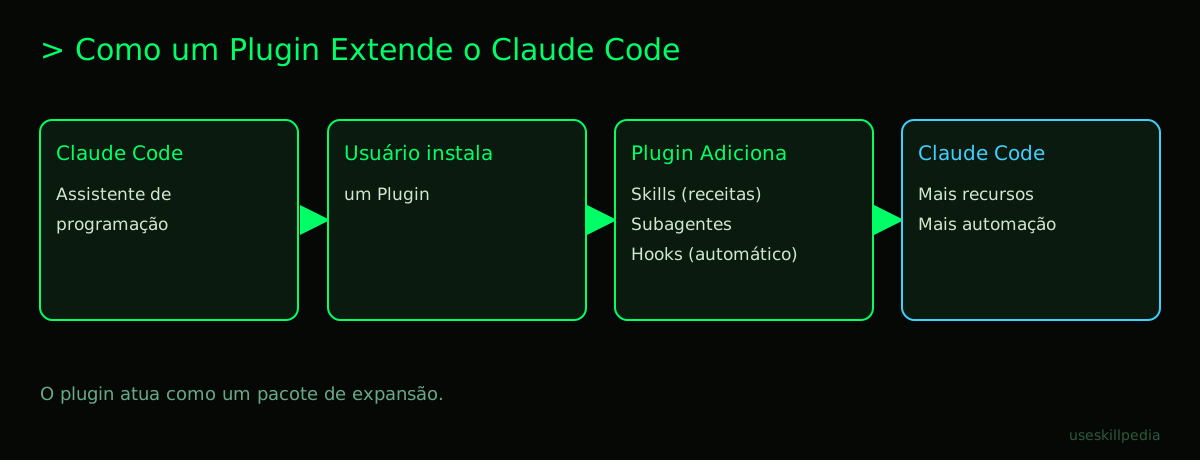
A plugin (or "add-on") is an addition to this main program. It adds new or specific functionalities that weren't there originally. The classic analogy is mobile phone apps:
- Your smartphone (Claude Code) already has basic functions: make calls, send messages, use the camera.
- But you want to edit photos in a special way, so you download a photo editing app (the plugin). Now, this new capability is integrated into your phone.
Similarly, a plugin in Claude Code can, for example:
- Teach Claude to create commit messages (those summaries of code changes) following a specific standard for your team.
- Add tools to work with a special database.
- Create sub-assistants that handle specific parts of your project.
The big advantage is that someone has already packaged everything you need in one place, ready to use.
What's Inside a Plugin?
A plugin isn't magic. It's actually a folder on your computer that brings together several smaller components that work together. Let's meet each one, explaining each new term:
- Skills: These are the "instructions" or "scripts" that teach Claude Code to do a very specific task. Think of a skill as a detailed recipe you give to your assistant. The skill says: "When the user asks for X, do steps A, B, and C in this way."
- Subagents: It's as if your main assistant (an agent is a term for an autonomous program, like Claude) could call a specialist helper assistant. For example, you ask about an error, and Claude automatically "calls" a subagent that only understands that programming language to give a more precise answer. It's a division of labor.
- Hooks: These are automatic commands that run at certain moments, without you needing to ask. The classic example is a hook that runs every time you edit a file, to check if everything is still working. It's like an assistant that, every time you put a tool on the workbench, already cleans it and puts it in the right place.
- MCP Servers (Model Context Protocol): Here we have an important term. Think of MCP as a universal connection standard, like a USB-C port. It allows AI applications (like Claude Code) to connect to other programs, files, or online services. An MCP server is the program on the other side of that connection, providing data or tools. A plugin can bring a ready-made MCP server to connect Claude to Google Calendar, for example. If you want to understand this foundational part better, we have an article explaining What is MCP (Model Context Protocol): Explained in an Easy Way.
To manage all this, the plugin has a main file called a manifest (in .claude-plugin/plugin.json). It's like the box and manual of your new app. This file lists everything the plugin contains (which skills, hooks, etc.) and explains how it should be configured.
| Plugin Component | Analogy | Main Function |
|---|---|---|
| Skill | A detailed recipe | Teaches Claude to execute a very specific task. |
| Subagent | A specialist consulted by phone | An "assistant within the assistant" focused on one topic. |
| Hook | An automatic habit (e.g., putting keys away) | Executes an action automatically at certain points in your work. |
| MCP Server | A universal adapter/translator (USB-C) | Connects Claude to external data and tools in a standardized way. |
How to Find and Install Your First Plugin (Step-by-Step)
Let's get practical! Installing a plugin is very simple, and it's all done within the Claude Code window itself.
- Open the plugins screen. In Claude Code, just type the command
/pluginand press Enter. A special screen will open. - Explore the marketplace. The screen has tabs. In the "Discover" tab, you'll see popular plugins. They come from catalogs called marketplaces (like an app store). The official Anthropic marketplace (the creator of Claude) is already added automatically for you. It's called
claude-plugins-official. - Add other marketplaces (optional). If you know of a public catalog (usually a repository on GitHub), you can add it. The command is:
/plugin marketplace add username/repository-name. - Install the desired plugin. When you find a plugin you want, the command to install it is:
/plugin install plugin-name@marketplace-name. For example, to install a plugin calledcommit-commandsfrom the official marketplace:/plugin install commit-commands@claude-plugins-official. - Done! The plugin will be downloaded and configured. Its skills and tools are now available for Claude Code to use in your project.
Important: A plugin, once installed and activated, uses a little bit of Claude's context memory (the one measured in tokens) in every session. This is because the name and description of its skills need to always be available. It's a small usage, but it's good to know. If you're not using a plugin, you can temporarily disable it with the command claude plugin disable directly in the terminal (the text window where you type commands for the computer).
Plugins vs. Individual Skills: What's the Difference?
You might wonder: "If a skill is part of a plugin, can I have a skill by itself?" The answer is yes!
Claude Code allows you to add individual skills without needing a whole plugin. It's like, instead of downloading a complete painting toolset (plugin), you just buy one very good brush (individual skill).
- Where to put them? Individual skills are simply folders you copy to a special location on your computer. There are two main folders:
~/.claude/skills/(in your user folder): Skills available for all your projects../claude/skills/(inside your project folder): Skills available only for that specific project.
- When to use them? If you found a standalone skill online, or created one yourself for a specific need, this is the most direct way to add it.
- What about a plugin? A plugin is more advantageous when several things (skills, hooks, MCP servers) need to work together and be managed as a cohesive package. Also, it's easier to install and update through a marketplace.
To explore this integration of external tools more deeply, you can read about What is an MCP Server and How it Works and see a practical list at MCP Servers: List with Real Examples.
Safety Tips and Smart Usage
Installing a plugin gives more power to your Claude Code. So, it's good to take some precautions, just like you do when downloading an app on your phone.
- Trusted Source: Prefer plugins from the official marketplace or from sources with a good reputation (like well-known open-source projects). A malicious plugin could, in theory, try to run unwanted commands on your computer.
- Permissions: Remember that the plugin runs with your permissions. That means it can access the files and folders that your computer user has permission to access. Do not install plugins of dubious origin.
- Context Cost: As mentioned, each active plugin takes up space in Claude's memory (the tokens). If you install many plugins, you might be spending precious tokens that could be used to analyze your files. Keep active only the ones you really use. To better understand this "fuel" for AIs, take a look at What are Tokens in AI (and Why They Run Out So Fast).
- Start Simple: For your first project, try a small, well-reviewed plugin. You don't need to install ten at once. Gradually, you'll understand what really adds to your workflow.
Finally, if you're excited and want to create your own automations, even without being a programmer, explore the concept of AI Agent: What It Is, How It Works, and How to Create Yours (Without Coding).
We Recommend Trying These 3 Skills First
Before diving into complex plugins, how about trying some useful individual skills? You can find many in the official repository or on our page to search for skills. Here are three suggestions to start with:
- Skill: mcp-builder-anthropics: This skill teaches Claude Code to help you create your own MCP servers. It's like a tutor that guides you through the process of building that "USB-C adapter" to connect Claude to your tools.
- Skill: skill-creator-anthropics: As the name says, it's a skill that helps you create other skills. Noticed a repetitive task? Use this skill to generate the "recipe" (the skill) that automates that work in the future.
- Skill: mcp-server-patterns-affaan-m: It provides examples and templates (patterns) of code for MCP servers. It's a great reference for when you want to understand how these connections are made under the hood, following what you learned in What is MCP (Model Context Protocol): Explained in an Easy Way.
Frequently Asked Questions
Do I need to pay to use plugins in Claude Code? Not directly. The plugins themselves are free. However, to use Claude Code, you need a paid Claude plan (Pro, Max, Team, or Enterprise). The Free plan does not include access to Claude Code.
Can I create my own plugins?
Yes! The specification is open. You can group your skills, hooks, and MCP configurations in a folder with the manifest file (plugin.json) and share it. It's a more technical process, recommended for those already familiar.
I installed a plugin, but I don't know how to use it. What do I do?
Normally, the plugin activates new skills or commands automatically. Try talking to Claude Code normally and describe the task the plugin promises to help with. For example: "Claude, I want to create a commit message for my changes." If it has a plugin for that, it will use the corresponding skill. You can also see the installed skills in the .claude/skills/ folder of your project.
Does the plugin work in all my projects at once?
It depends on the scope of the installation. Plugins can be installed for the user (all projects), for a specific project (ideal for teamwork), or just locally. Installation via the /plugin install command is usually per project.
Is a Claude Code plugin the same thing as a VS Code extension? No, they are different things. The Claude extension for VS Code (or JetBrains) is a program that brings Claude's intelligence into those specific development environments. A Claude Code plugin is a package of features that works within the Claude Code application itself. One does not depend on the other.
Read Also
- Claude Code: What It Is, How to Download, Install, and How Much It Costs (2026 Guide)
- How to Connect MCP in Claude (Desktop and Code)
- Best MCPs for Claude: Figma, Drive, WhatsApp, Power BI
Sources
- What is the Model Context Protocol (accessed on 10/16/2026)
- Claude Code: MCP (accessed on 10/16/2026)
- Claude Code: plugins (accessed on 10/16/2026)
- Claude Code: plugins (accessed on 10/16/2026)
- Claude Plans and Pricing (accessed on 10/16/2026)
Full guide on this topic: What is MCP? The Simple Guide to the Model Context Protocol