How to Build AI Agents with Claude: A Simple Guide for Beginners
Skillpedia team · updated 2026-10-16 · 12 min read
Short answer: To create your AI agent with Claude, you simply tell Claude, in plain English, what it should do and how to behave. You can give it extra abilities, like accessing the internet or reading files, using tools called Connectors or Skills. No programming needed.
Have you ever imagined having a personal assistant, always available on your computer, who understands exactly what you need and knows how to do specific tasks for you? One that organizes your emails, summarizes reports, or even plans your trips? That's what an AI agent can be.
The best part: you don't need to be a programmer to create yours. Claude, a very popular artificial intelligence, allows anyone to build their agent conversationally, as if you were explaining it to a very smart and helpful friend.
In this article, we'll guide you, step by step, in a super simple way, through the process of creating your first agent. We'll demystify everything, with no technical jargon. Let's go?
Table of Contents
- What is an AI Agent, Anyway?
- Why Create an Agent with Claude?
- The Ingredients to Create Your Agent
- Step-by-Step: Building Your First Agent
- Giving Superpowers to Your Agent with Skills and MCP
- Claude Code: Your Agent Lives on Your Computer
- We Recommend Trying These 3 Skills First
- Frequently Asked Questions
What is an AI Agent, Anyway?
Think of a common chatbot. You ask a question, it gives an answer. The end. An AI agent is different. It's like an autonomous employee or a digital personal assistant.
It has a specific purpose that you define (e.g., "help me plan trips"). It follows clear instructions on how to behave (e.g., "be detailed with budgets"). And, most importantly, it can act. It doesn't just respond, but also does things: researches the web, calculates, organizes data in a spreadsheet, sends emails.
An analogy: a chatbot is like a store clerk who only answers what you ask about a product. An agent is like a personal shopper who knows your style, goes to other stores to find options, compares prices, and brings the best choices to you.
If you want to dive deeper into the concept, we have a full article: AI Agent: What It Is, How It Works, and How to Create Yours (Without Programming).
Why Create an Agent with Claude?
There are several tools for creating agents. Claude stands out for some very practical reasons for beginners:
- Simplicity: You create your agent mainly by chatting. You write, in English, what you want it to do. You don't need complicated code.
- Integrated Abilities (Connectors): Claude.ai (the Claude website) already comes with ready-to-use tools called Connectors. It's as if your new assistant already comes, out of the box, with access to some tools: it can search the internet, read documents you upload (PDF, Word, Excel), analyze images, and much more.
- Claude Code: For more powerful and private agents, there's Claude Code, an application you install on your computer. With it, your agent works directly on your machine, can access your local files, and use a multitude of extra tools called Skills and MCP. It's included in all paid Claude plans (Pro, Max, Team, Enterprise).
- Performance: Claude's current models, like Claude Sonnet 5.5, are leaders in coding and reasoning tasks, according to independent rankings from October 2026. This means your agent will be smart and capable of complex tasks.
- Affordable Cost: You can start for free with the Free plan. For advanced features and intensive use, the Pro plan costs US$ 20 per month. If you need a lot of power, Max starts at US$ 100/month.
Quick Comparison: Where to Create Your Agent
| Tool | Best For | Difficulty | Where Does the Agent Live? |
|---|---|---|---|
| Claude.ai (website) | Beginners, quick tasks, use with web Connectors | Very Easy | In the cloud (Claude's servers) |
| Claude Code (app) | Powerful, private agents, with Skills/MCP, automation | Easy to Moderate | On your own computer |
| Other Platforms (n8n, etc.) | Complex automations that connect many apps | Moderate to Difficult | Usually on a cloud server |
The Ingredients to Create Your Agent
Before we start "cooking" your agent, let's understand the basic ingredients. Don't worry, it's all stuff you already understand, just with different names.
- System Instructions: This is your agent's "personality" and "job description." It's a text where you explain who it is, what it should do, and how it should behave. E.g., "You are a personal finance organizer. Your task is to analyze my spending and suggest savings. Be encouraging, never judgmental."
- Context: This is the conversation's memory. Everything said before, including files you uploaded, is stored here. Current Claude models remember 1 million tokens per conversation. A token is the unit of text the AI processes. To give you an idea, 1 million tokens is roughly equivalent to about 555 thousand words in English. That's a very large book!
- Tools (Connectors, Skills, MCP): These are your agent's "hands." While the brain (the AI) thinks, the tools allow it to interact with the world. On the website, these are Connectors (web search, PDF reader). In Claude Code, you have Skills (ready-made task recipes) and MCP (Model Context Protocol), which is like a universal USB-C port to connect your agent to any program on your PC, like spreadsheets, calendars, or even design software.
- Claude Code (optional, but powerful): This is Anthropic's desktop application. When you install it, your agent stops running only on the website and starts living on your own PC. This provides more privacy and direct access to your files. To learn more about it, check out our guide: Claude Code: What It Is, How to Download, Install, and How Much It Costs (2026 Guide).
Step-by-Step: Building Your First Agent
Let's create a practical agent: a Link and Summary Organizer. Its function will be to take links you send, fetch their content, and create an organized summary.
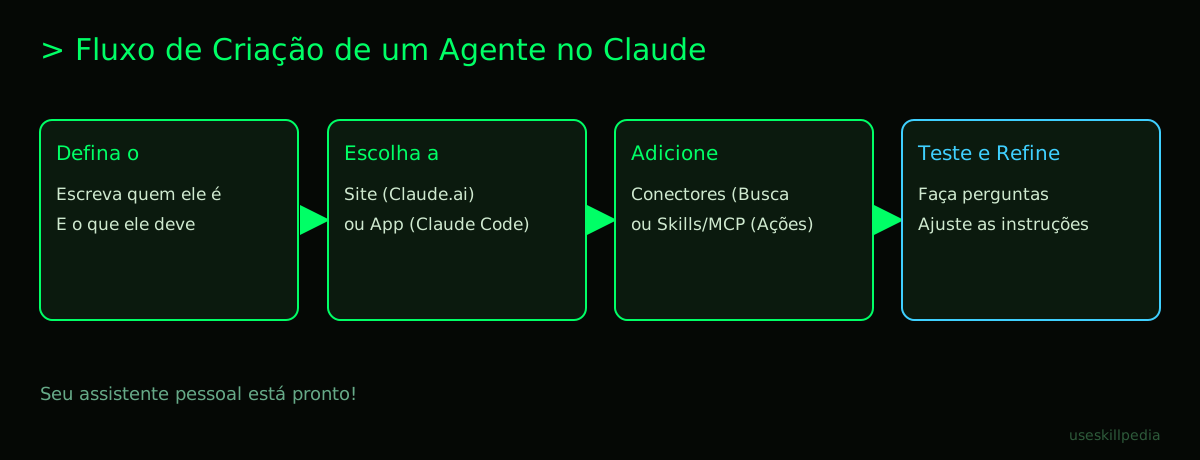
Step 1: Access and Prepare the Environment Go to claude.ai and log in (you can use the free account). Click on "New Conversation." Done, you're in the "construction room."
Step 2: Define the System Instructions (The Personality) In the first message, don't send a link yet. First, "hire" your agent. Type something like:
"From now on, you will act as my Link and Summary Organizer. Your rules are:
- Whenever I send a link (URL), you must use it to access the online content.
- Read the main content of the page.
- Provide me with a clear summary in English in up to 5 bullet points.
- At the end, highlight 2 or 3 main keywords about the topic. Be direct and factual. If the link doesn't work, let me know."
Step 3: Activate a Tool (The Hands) For the agent to access the web, it needs the right tool. On the Claude website, this is easy. Click on the connector icon (usually a "+" or tool symbol) next to the typing box and select the "Web Search" connector. Now your agent has permission to leave the conversation and fetch information from the internet.
Step 4: Test the Agent Now, paste the link of a news article or blog post you want summarized and send it. Watch the magic: Claude will use the connector you activated to visit the link, read the content, and, faithfully following your instructions, return to you with an organized summary and keywords.
Congratulations! You've just created and run your first AI agent. It has a personality (instructions), a capability (search tool), and performed an autonomous task.
Giving Superpowers to Your Agent with Skills and MCP
Your agent on the website is already useful. But with Claude Code and its concepts, it can become a superhero. Let's understand two powerful concepts:
Skills: Think of Skills as "cake recipes" or ready-made "apps" for your agent. Someone has already programmed a sequence of steps for a specific task, and you can install this Skill in your Claude Code. For example, a Skill that teaches your agent to rename a bunch of files at once following a rule, or to extract all tables from a PDF.
- Where to find Skills? In the official repository or you can search for skills here.
- How to install? It's usually a simple command in the terminal (that black window where programmers type commands), like typing
/plugininside Claude Code and choosing a skill from the official catalog, or copying the skill folder to~/.claude/skills/.
MCP (Model Context Protocol): If Skills are ready-made apps, MCP is the operating system that allows creating completely new connections. The official analogy is perfect: it's a USB-C port for AI applications. It defines a standard so that any program on your computer (like Excel, Blender, your database) can "talk" to your agent in Claude Code.
- With MCP, your agent can, for example, read events from your Google Calendar and write notes in Notion automatically. To better understand this technology, read our article: What is MCP (Model Context Protocol): Explained in an Easy Way.
The combination of Skills + MCP in Claude Code is what transforms a conversational agent into a true automated assistant that works with your everyday applications. If you're interested in this ability to break down complex tasks, you might like to read about Subagents in Claude Code: What They Are and How to Use Them.
Claude Code: Your Agent Lives on Your Computer
Installing Claude Code brings Claude's power to your desktop, with more privacy and integration. It's like having an employee working inside your own company (your PC), instead of hiring an external service.
Installation is simple. You can use a visual installer or a terminal command. For Windows, for example, just open PowerShell (a type of Windows terminal), paste this command irm https://claude.ai/install.ps1 | iex and press Enter. The program will download and install itself.
Once installed, you open Claude Code, log in once, and can call your agent directly from a specific folder in your project. It will have access to the files in that folder and the Skills and MCP servers you've configured.
It's in Claude Code that agent creation really takes off, because you can combine complex instructions, access to local files, and powerful tools in a stable way. It's a step beyond browser use. For a complete installation and usage guide, always check the official page.
We Recommend Trying These 3 Skills First
If you're starting with Claude Code, installing these Skills is a great way to see the power of agents in practice. Remember: Skills are like ready-made apps or recipes.
- agent-harness-construction-affaan-m: This Skill works as an "agent trainer." It helps you test and refine your agent's instructions, ensuring it behaves exactly as you want before putting it to real work. It's like simulating situations for your new assistant.
- agent-eval-affaan-m: This is the "agent evaluator." After creating your agent, how do you know if it's good? This Skill runs automatic tests, checks if the answers are correct, and gives you a grade (a score). It's the quality control for your digital assistant.
- skill-creator-anthropics: This one is meta! It's a Skill that helps you create your own Skills. It guides you through the process of packaging a useful task into a Skill that can be reused. When you have a really good automation, use this Skill to turn it into a permanent tool.
Frequently Asked Questions
Do I need to pay to create an agent with Claude? No. You can create basic agents directly on the website claude.ai using the Free plan. To use Claude Code (the desktop app) and advanced features of paid plans, like higher usage limits, you will need a Pro plan (US$ 20/month) or higher.
What's the difference between a Connector (on the website) and a Skill (in Claude Code)? Think of it this way: Connectors are generic, pre-installed tools on the website, like a basic "wrench" and "screwdriver." Skills are specialized tools you install in Claude Code, like a "complete bicycle repair kit" or a "specific tool for assembling furniture." Skills are more diverse and focused on specific tasks.
Can my agent work alone, without me watching? It depends on where it "lives." An agent in a conversation on the website needs you to be in the conversation initiating tasks. An agent created in Claude Code can be integrated into automation systems (like n8n, for example) to be triggered by events (e.g., "when an email arrives, summarize it") and work more autonomously. To explore this idea, see AI Agents with n8n.
Can I create an agent for WhatsApp? Yes, it's possible! You can use automation platforms (like n8n mentioned above) to connect an agent created in Claude (or another AI) to WhatsApp. This way, the agent can respond to messages, answer questions, and interact with contacts automatically. We have a guide on this: AI Agent for WhatsApp: A Practical Guide.
Tokens run out fast. What does my agent spend tokens on? Everything in the conversation's memory spends tokens: your initial instructions, the entire chat history, the files you uploaded, the results the tools bring back, and the responses Claude generates. That's why very long instructions or endless conversations use up the limit. To understand in detail, read What Are Tokens in AI (and Why Do They Run Out So Fast).
Read Also
- How to Create an AI Agent from Scratch (Without Programming)
- AI Agent for WhatsApp: A Practical Guide
- Claude Code: What It Is, How to Download, Install, and How Much It Costs (2026 Guide)
- What is MCP (Model Context Protocol): Explained in an Easy Way
- AI Agent: What It Is, How It Works, and How to Create Yours (Without Programming)
Sources
- What is the Model Context Protocol (accessed on 16/10/2026)
- Claude Code: Overview (accessed on 16/10/2026)
- Claude Plans and Pricing (accessed on 16/10/2026)
Full guide on this topic: What Are AI Agents? A Beginner's Guide to Creating Your Own